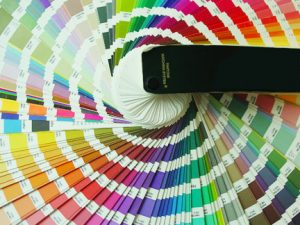
 Do you have a favorite color?
If you’re a designer, I hope your answer is no. Every color can look good or bad, and be valuable or useless, depending on where and how it is used.
In this blog post we’ll help you find colors for your next book project. [Read more…]
 By now you all know that Book Design Made Simple is in its second edition and that we also have an ebook edition on the market. We’re going to reveal how it all came about, and we hope you can learn from some of our stumbles . . . yes, even seasoned publishing professionals can make mistakes, foul up, and generally just muddle through. Read on!
 Are you designing a book cover that’ll become part of a series or boxed set? If so, you’ll need to think ahead! There are a few design considerations to take into account when you plan your book cover design. Not only should your cover design be successful using different title lengths and images, but more importantly, it must create a look or brand that’ll easily identify all future books as being part of the same series. Sound challenging? Don’t worry, we’ve got you covered!
  My chair creaks. Start over. I sneeze. Start over. The phone rings. Move it out of the room and start over. “Ummm.” Start over. Someone comes in the room and rustles around. Start over. If I had a dog it would definitely be barking about now. Start over, start over, start over!
 Does the prospect of creating a book cover design make you feel anxious? Jittery? Terrified? Do you start to contemplate cleaning out your basement instead? Don’t worry! You’re not the only one.
  InDesign’s Book feature can be handy! Let’s say you’re working on a book with lots of images and/or chapters. And the file sizes are enormous. In fact, they are so big that you thought it would be smart to divide the book into separate documents for parts or chapters. That’s exactly what we did with Book Design Made Simple. It was more convenient for us to swap smaller sections back and forth than to send the entire book each time. All the parts or chapters were linked together at the end using InDesign’s Book feature. So this blog post explains how to create a Book file, or as we call it, “book” a book.
 In early November, we all woke up to find Adobe Creative Cloud waiting to be updated. What—again? Well, it turns out that this update, CC 2017, does provide some InDesign enhancements that might help you work more effectively and improve your design. We’ll discuss the significant ones here.
  Tried adding images to tables in InDesign? There are lots of features you can add to your tables in InDesign to make them more appealing and easier to follow for your readers. Three of the most useful features are explained below: (1) creating two header rows that repeat at the top of every page of a multi-page table; (2) adding images to your table; and (3) aligning columns of numbers.
 Want to improve your tables in InDesign? So far you’ve imported your table or spreadsheet from Word or Excel into InDesign, and made a few adjustments to the text and columns following our previous blog post,
 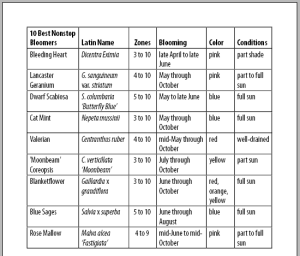 Have you tried importing from Excel into InDesign? In Book Design Made Simple we walk you through importing tables from Word, but importing a spreadsheet from Excel is a bit different so we’ll walk you through it here. And, because spreadsheets and tables rarely import into InDesign looking like they did in Excel and Word, we’ll give you a few tips on the easiest way to get started.
